Turning pages with a Bluetooth pedal: choosing and setting up
On piano, guitar, winds and other instruments that keep both hands busy, tapping the screen to turn pages mid-piece is awkward. A Bluetooth foot pedal lets you turn pages without taking your hands off the instrument. Here’s how to choose one, connect it to an iPad, troubleshoot it, and what other hands-free options you have.
This article is written by NOURETE, the maker of the sheet music app Scorevell. Steps specific to the app are in the “In Scorevell” notes.
How pedal page turning works
Most Bluetooth page-turn pedals appear to the iPad as a keyboard. Each press sends the same signal as a particular key, such as an arrow key or Page Down. Your sheet music app treats those keys as “next page” and “previous page.”
So if the keys your pedal sends match the keys the app listens for, it just works. If they don’t, switch the pedal’s mode or reassign the keys in the app.
Choosing a pedal
What to check:
- Keyboard mode: does the manual mention a keyboard or HID mode? Can you switch which keys it sends?
- Number of pedals: one pedal gives you “next” only; two give you “next” and “back.” If your music has lots of repeats or D.S. jumps, two pedals help.
- Noise: a loud click can be distracting on stage or in a recording. Some models use quiet switches.
- Power: disposable or rechargeable batteries, and can you see how much charge is left? Easy-to-check is better before a performance.
- Stability: is it heavy enough, with a non-slip base, so it stays put when you press it? If you travel with it, check the size and weight too.
- Avoid devices that send volume keys: many camera shutter remotes send volume keys, which the device handles first, so they often can’t turn pages.
Connecting to an iPad
- Turn on the pedal and put it in pairing mode as described in its manual.
- On the iPad, open Settings → Bluetooth and tap the pedal’s name in the list.
- Open a score in your sheet music app and press the pedal to check that the page turns.
Because the pedal connects as a keyboard, the on-screen keyboard may not appear when you type. If you need to enter a title, turn the pedal off and the on-screen keyboard comes back.
In Scorevell: Pedal page turning is free and needs no special permissions.
- Out of the box, →, ↓, Page Down and Space go to the next page, and ←, ↑ and Page Up go to the previous page.
- In Settings → Page-turn pedal, press your pedal and the keys it sends appear on screen. You can assign each one to Next or Prev, or Clear it.
- So a single press never skips two pages, repeated keys in the same direction that arrive within a moment are counted once.
- In vertical scroll, each press moves 80% of the screen. In a setlist, you continue from the last page of one piece into the next.
If the pedal doesn’t respond
- In the iPad’s Settings → Bluetooth, is the pedal shown as Connected?
- Does the pedal have battery left?
- Is the pedal in its keyboard mode? (Check the manual.)
- Do the keys the pedal sends match the keys the app listens for?
- Is the pedal still connected to another device, such as your phone or computer?
In Scorevell: Open Settings → Page-turn pedal and press the pedal to see whether a key appears. If nothing appears, the pedal isn’t reaching the iPad. If a key appears but the page doesn’t turn, assign that key to Next.
Other hands-free options
Head turns and winks
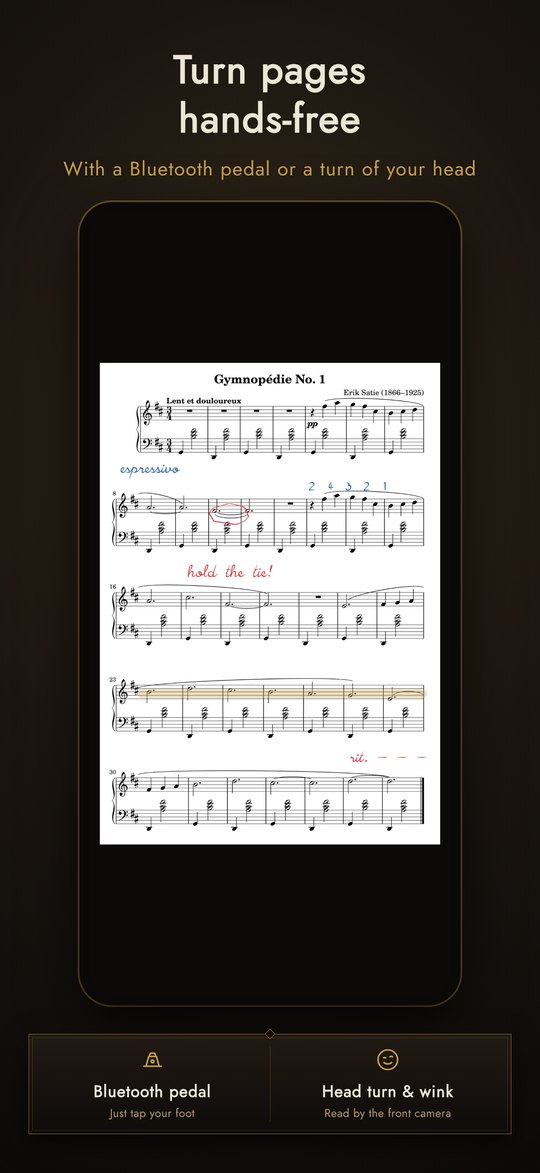
The iPad’s front camera reads your face, and you turn the page by turning your head or closing one eye. This helps where there’s no room for a pedal, or on instruments that keep your feet busy, such as organ or drums.
In Scorevell: Tap Face page turning in the toolbar (free). Choose Wink or Head turn as the gesture, with three sensitivity levels. Close one eye and hold it briefly to turn; blinking (closing both eyes) won’t turn the page. Turn on Forward only to keep small movements from sending you back a page. Camera video is processed only on the device and is never saved or sent.
Half-page turns
While you play the bottom half of a page, the top half of the screen already shows the top of the next page. The music never breaks at the page turn, so you have more time to turn.
In Scorevell: Choose Half page under Pages in the toolbar. Each turn advances half a page and shows the next system early. It works with a pedal or face page turning.
Auto-scroll
The music scrolls at a speed you set. It suits pieces with a steady tempo, or singing while you accompany yourself.
In Scorevell: Choose Vertical scroll under Pages, and Auto-scroll appears in the toolbar. The speed is shown as seconds per page, and you can adjust it with Faster and Slower.
Summary
When choosing a pedal, first make sure it works as a keyboard, then look at the number of pedals, how much noise it makes and how it’s powered. Once it’s connected, play through a real piece to the last page before your performance.
In Scorevell: Pedal turns, face page turning, half-page turns and auto-scroll are all free. No ads.
See Scorevell on the App Store
As of October 2026. For iPhone and iPad (iOS/iPadOS 15.5 or later).