How to show sheet music as a spread on two iPads
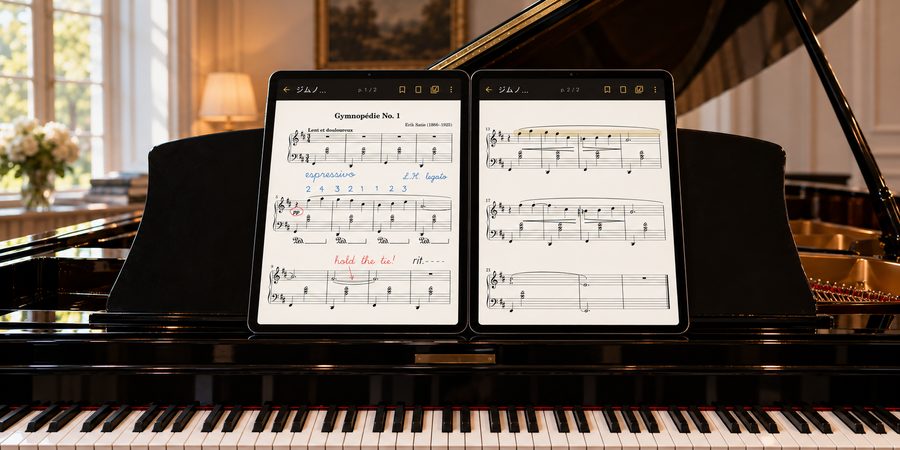
When you read piano music or accompaniments on an iPad, seeing only one page at a time can start to feel limiting. Put two iPads side by side, show the left page on the left and the right page on the right, and you get the same two-page spread as an open paper score. Here is what you need, how to connect, and how to set things up.
This article is written by NOURETE, the maker of the sheet music app Scorevell. Steps specific to the app are in the “In Scorevell” notes.
What changes with two devices
A single iPad can show a spread too, but each page gets only half the screen. With two devices, every page fills its own screen and you still see two pages at once.
- Half as many page turns: one turn every two pages.
- You can see ahead: while you play the right page, the left page is still in view, which helps with phrases that cross a page break and with finding where a repeat sends you.
- Same layout as paper: if you remember a passage as “near the bottom of the left page,” that memory still works.
What you need
Two iPads
Two iPads of the same size keep both pages the same size, which is easier to read. As a rough guide, a 13-inch screen is a little larger than a 7 × 10 inch page, and an 11-inch screen is about 6.3 × 9 inches. Measure your music stand first to make sure both devices fit.
The same PDF
Import exactly the same PDF file on both devices. Different editions or scans of the same piece can have different page layouts. The surest way is to import the file on one iPad and send it to the other with AirDrop.
The same Wi-Fi
The two devices connect within the same Wi-Fi network. They don’t need internet access. If there’s no Wi-Fi at the venue, you can connect both to an iPhone’s Personal Hotspot instead.
How to connect
Every app looks a little different, but the usual flow is: open the same score on both devices, choose left and right, then pick the other device to connect. Once connected, turning the page on either device should move both.
In Scorevell: Two-Device Spread is a Pro feature, and both devices need Pro. No internet is used.
- Connect both devices to the same Wi-Fi, import the same PDF, and open the same score.
- Tap Two-Device Spread in the toolbar.
- Under “Page shown on this device,” choose Left on the device on the left and Right on the device on the right, then tap Start on both.
- The other device appears under “Nearby devices” on one of them. Select it, enter the 6-digit code shown on the other screen, and tap Connect.
- When you see “Connected,” you’re done: the left device shows the left page and the right device shows the right page.
The first time, if your iPad asks for permission to use the local network, allow it. The devices stay connected after you close this screen.
Setup and performance tips
- Use portrait and lock rotation: if the orientation changes mid-piece, the page size changes too.
- Match the brightness: uneven brightness is tiring on the eyes.
- Silence notifications: turn on a Focus mode so nothing pops up while you play.
- Charge both: if either battery runs out, the spread falls apart.
- Check how pages pair up: a cover or title page can shift left and right pages compared with the printed score. If the app can show the first page alone, use it.
- One pedal is enough: if turning on either device moves both, pair your pedal with just one of them.
In Scorevell: “Show first page alone” and the 2-page or 1-page step in the Pages settings work the same way with two devices. The screen stays on while you play.
If the devices can’t connect
What to check:
- Both devices are on the same Wi-Fi.
- Wi-Fi at venues and shops may block connections between devices. In that case, connect one device to the other’s Personal Hotspot.
- In the iPad’s Settings → the app → Local Network is turned on.
- Both devices have the latest version of the app.
- Both devices have the same PDF open. If the page counts differ, import the same file again.
In Scorevell: The Two-Device Spread screen shows the current status (such as waiting, connected, or that the other device opened a different score) and tips for when a device can’t be found.
Keeping more than two devices in step
For choirs, bands and chamber groups where many players need to stay on the same page, a feature where everyone follows one person’s page turns works better.
In Scorevell: In Ensemble mode, when the leader turns the page, every device that joined moves to the same page. The leader can also show their annotations on everyone’s music. Only the leader needs Pro; joining is free. It also works within the same Wi-Fi, and everyone imports the same PDF.
Summary
The shortcut to a two-device spread is three matching things: same-size iPads, the same PDF and the same Wi-Fi. Try connecting once at home to settle your setup and page turns before you rely on it in a lesson or on stage.
In Scorevell: The app is free, with no ads. Pro is a one-time purchase that you can try free for 14 days. When the trial ends, the app switches back to the free version automatically, with no charge.
See Scorevell on the App Store
As of October 2026. For iPhone and iPad (iOS/iPadOS 15.5 or later). Prices vary by country.